Synchronized Playback (BETA)
If you are interested in testing this functionality, please contact support.
Smartsign 11.25.9 adds a new synchronized playback feature.
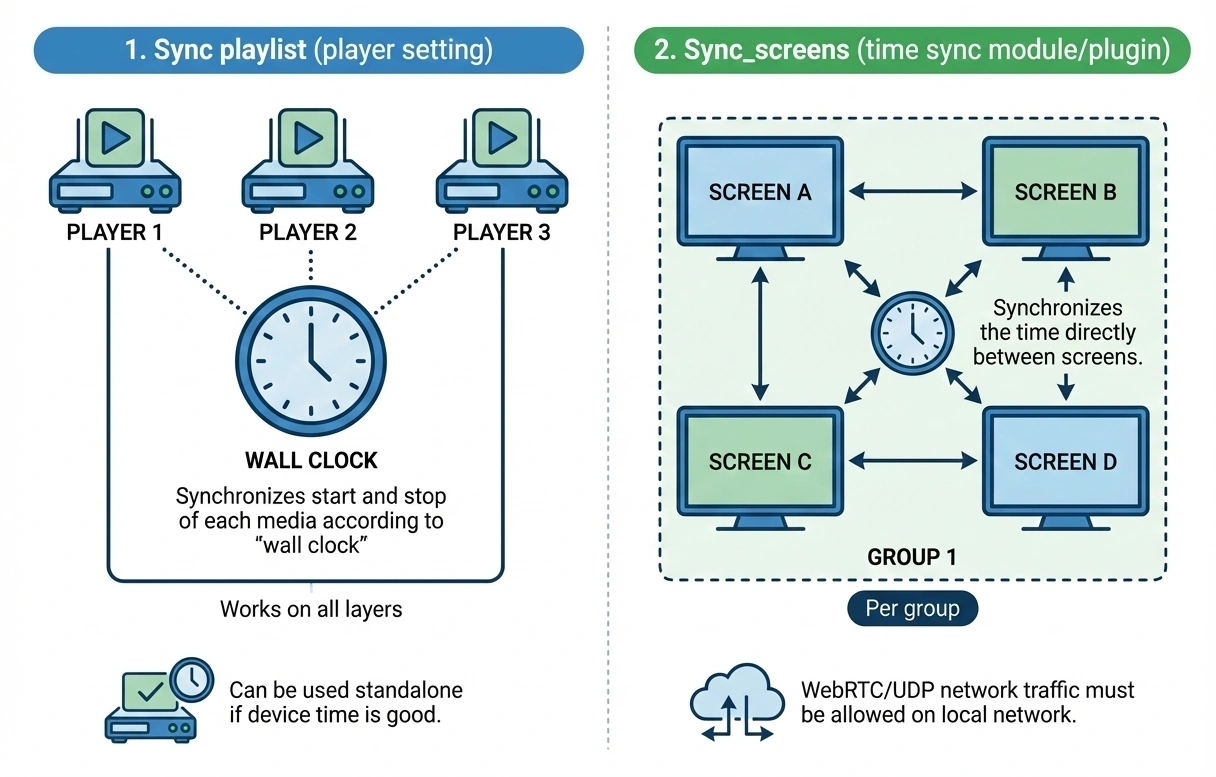
Technically it consists of two parts.
- Sync playlist (player setting)
- Synchronizes the start and stop of each media according to “wall clock” (time of day)
- Works on all layers
- Can be used standalone if device time is good
- Sync_screens (time sync module/plugin)
- Synchronizes the time directly between screens
- Per group
- WebRTC/UDP network traffic must be allowed on local network
Minimum requirements
- Smartsign Server version 11.25.9+ (v10 or v11 UI)
-
The Sync playlist setting can be used on all currently supported devices
-
Time synchronization using Sync_screens requires a WebRTC capable browser engine and WebRTC/UDP network traffic must be allowed on the local network. The minimum hardware requirements are as follows:
- Samsung 2022+
- LG webOS6.0+
- Android devices with Chrome 63+
- Windows Player, version 10.24+
Known Limitations
- Similar devices only; Models and firmware versions should be the same
- Not frame sync (by design)
- Templates have no timing inside
- Looping video, single or multiple (combined) needs more testing
- LG: If playing only video, the HTML5 video setting must be enabled
Player settings
Sync playlist
This setting controls the playback behavior. It can be used standalone of the players maintain a good time sync by themselves or by other means.
Enabled: Synchronizes the start and stop of each media according to “wall clock” (time of day).
On start the player calculates where it's supposed to be and starts playback from there.
Disabled (default): Playback always starts with the first media in the playlist.
Modules
The modules setting allows you to load "modules" a.k.a. "plugins" which can add or change functionality in players. To use the time synchronization you must add the module sync_screens and save. Once configured the module will add some additional settings to the player.
syncGroup
Added by module. Input a group name, all screens with the same group name will synchronize their time. Changing group name will force a restart. This is the only setting you need to set to enable time sync.
syncMode
Added by module. The only supported sync mode is time.
syncFlags
Added by module. Allows adding configuration flags, at this time it is only used for troubleshooting.
syncUseIceServers
Added by module. Experimental, should be left as default (false)